Local JSON
You can register field groups, settings pages, relationships, and custom models with JSON, not only with PHP. JSON files sit in a separate folder. You can track them with Git, cache them, and use JSON schema for editor auto-completion.
Local JSON is part of Meta Box Builder. It is included in Meta Box Lite and Meta Box AIO.
How it works
- Create an
mb-jsonfolder in your theme. - Make sure the web server can write to that folder.
- Put JSON files in the folder.
Meta Box reads those files and registers the items. It does not query the database for them.
Local JSON supports:
- Field groups (Custom Fields)
- Settings pages
- Relationships
- Custom models
JSON format
The JSON format matches a Builder export. It is close to the PHP version. The extra attributes are $schema, modified, and optional private.
Set $schema so the editor can offer auto-completion. Use the URL for the item type:
| Type | $schema |
|---|---|
| Field group | https://schemas.metabox.io/field-group.json |
| Settings page | https://schemas.metabox.io/settings-page.json |
| Relationship | https://schemas.metabox.io/relationships.json |
| Custom model | https://schemas.metabox.io/custom-model.json |
Field group
{
  "$schema": "https://schemas.metabox.io/field-group.json",
  "title": "Event details",
  "post_types": "event",
  "fields": [
    {
      "name": "Date and time",
      "id": "datetime",
      "type": "datetime"
    },
    {
      "name": "Location",
      "id": "location",
      "type": "text"
    },
    {
      "name": "Map",
      "id": "map",
      "type": "osm",
      "address_field": "location"
    }
  ],
  "modified": 1739955432
}
See creating fields with code for the full field group structure.
Settings page
{
  "$schema": "https://schemas.metabox.io/settings-page.json",
  "id": "theme-slug",
  "option_name": "theme_slug",
  "menu_title": "Theme Options",
  "parent": "themes.php",
  "modified": 1739955432
}
The keys match the settings page code API. To add fields to the page, use a field group JSON file (or the Builder) and set settings_pages to this page ID.
Relationship
{
  "$schema": "https://schemas.metabox.io/relationships.json",
  "id": "posts_to_pages",
  "from": "post",
  "to": "page",
  "modified": 1739955432
}
The keys match the relationships code API. For from and to, use a string or an object.
Custom model
{
  "$schema": "https://schemas.metabox.io/custom-model.json",
  "id": "transaction",
  "table": "transactions",
  "labels": {
    "name": "Transactions",
    "singular_name": "Transaction"
  },
  "modified": 1739955432
}
See custom models for the full structure.
Sync changes
Meta Box finds new or updated JSON files in the mb-json folder. It shows them in the Sync available tab on the matching admin list:
- Meta Box → Custom Fields for field groups
- Meta Box → Settings Pages for settings pages
- Meta Box → Relationships for relationships
- Meta Box → Custom Models for custom models
From that tab, sync JSON to the database, edit in the UI, then save to update the JSON file.
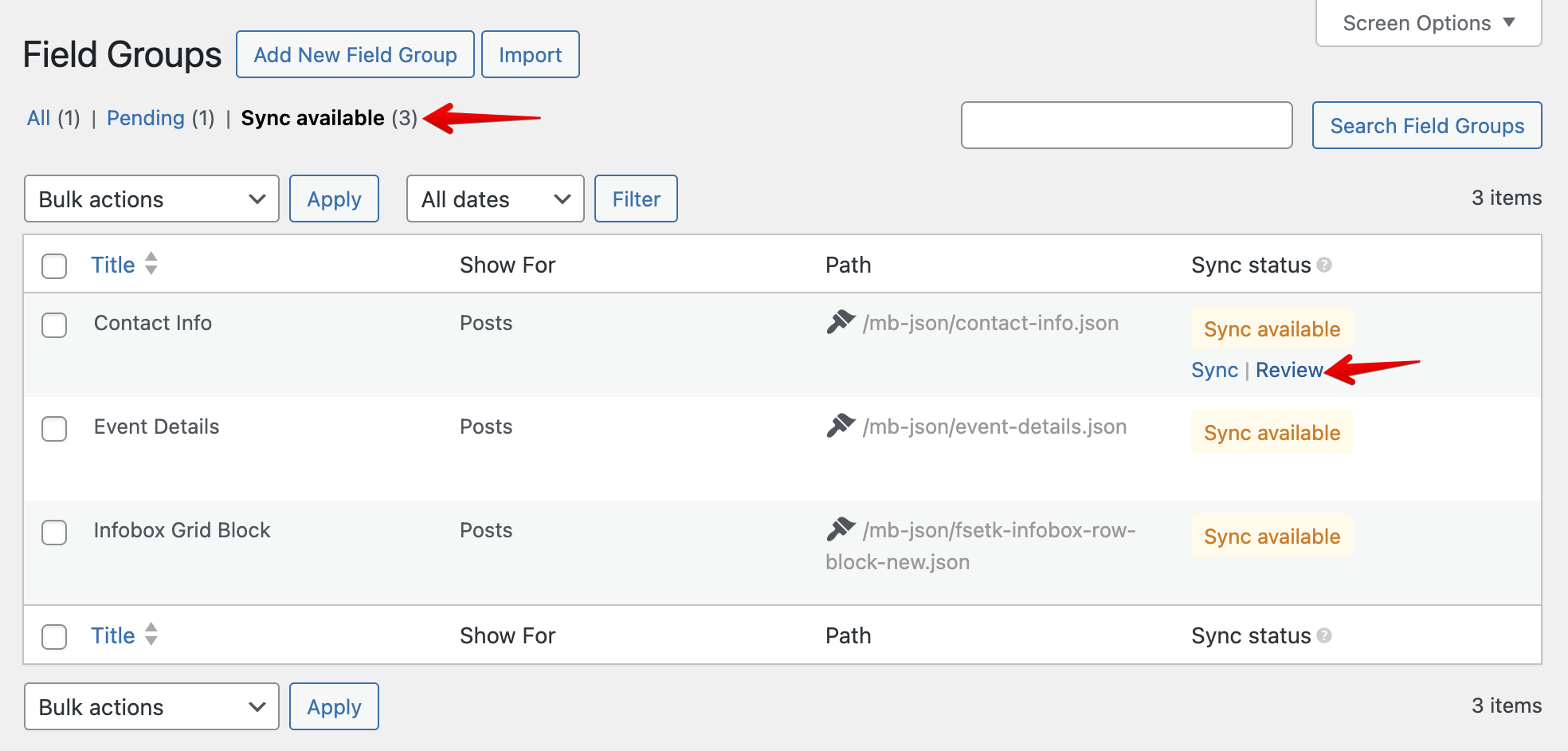
Before you sync, click Review to compare the database and the JSON file.
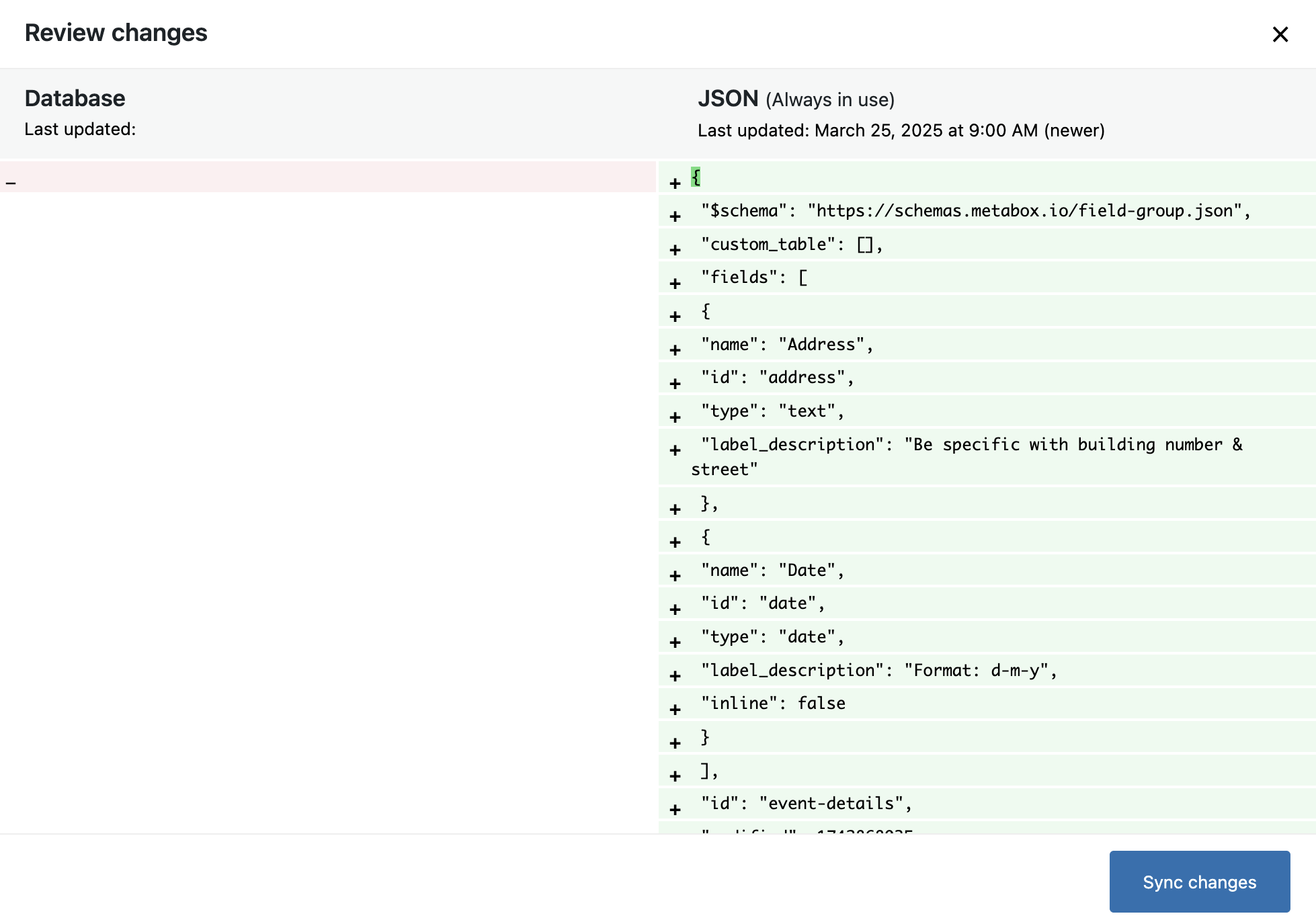
If you edit a JSON file by hand and want Meta Box to show Sync available, increase the modified attribute. That value is a Unix timestamp for the last update.
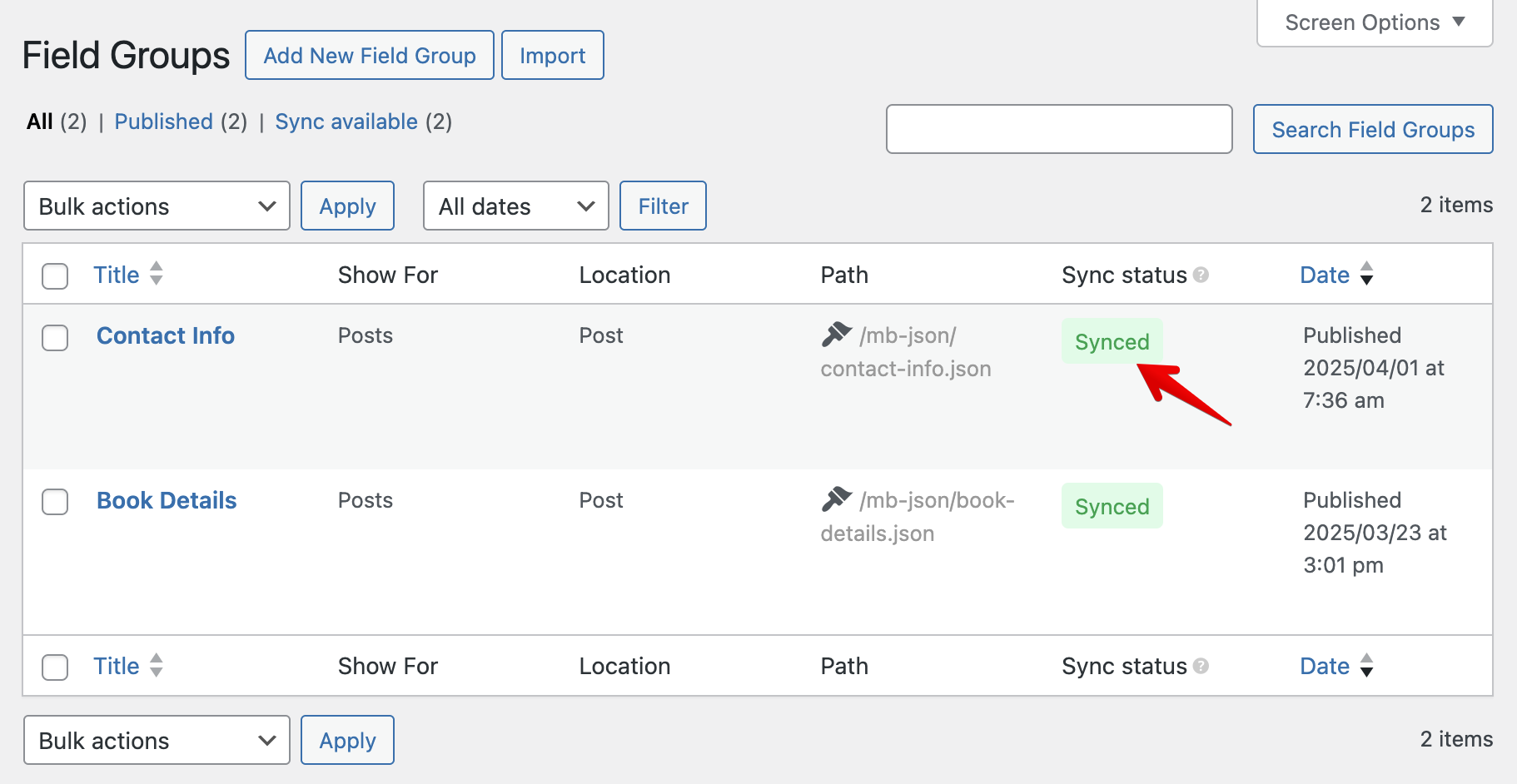
After sync, the item appears in the admin list:
Edit the item in the WordPress admin. A save writes the JSON file again. If you delete the item in the admin, Meta Box also deletes its JSON file.
Sync from JSON to the database has one purpose: edit in the UI, then write back to JSON (or export JSON to store elsewhere). When Local JSON is on, Meta Box loads field groups, settings pages, relationships, and custom models from the JSON files. It does not load those items from the database.
Hide files from Sync
If you ship JSON files in a theme or plugin and do not want them in Sync available, set "private": true in the file:
{
  "$schema": "https://schemas.metabox.io/field-group.json",
  "private": true,
  "title": "Theme fields",
  "post_types": "post",
  "fields": [
    {
      "name": "Subtitle",
      "id": "subtitle",
      "type": "text"
    }
  ],
  "modified": 1739955432
}
Meta Box still loads and registers the item from that file. The Sync UI does not list it, so users cannot sync it to the database by mistake.
The same private attribute works for settings pages, relationships, and custom models.
Add custom folders
By default, Meta Box looks in the mb-json folder in the active theme. To load JSON files from other folders, use the mb_json_paths filter:
add_filter( 'mb_json_paths', function( $paths ) {
    $paths[] = '/path/to/your/folder';
    $paths[] = '/path/to/your/folder2'; // Another folder

    return $paths;
} );
Security
Hide the JSON files from the public. Add an index.php file to the folder. Visitors who open the folder see a blank page.
<?php
// Silence is golden.