Custom Model
The custom model field selects one or more rows from a custom model.
This field is available only when MB Custom Table is active. To create and manage custom models, see Custom models.
You can show the field as a select dropdown, a select advanced dropdown (Select2), a checkbox list, or a radio list.
Screenshots
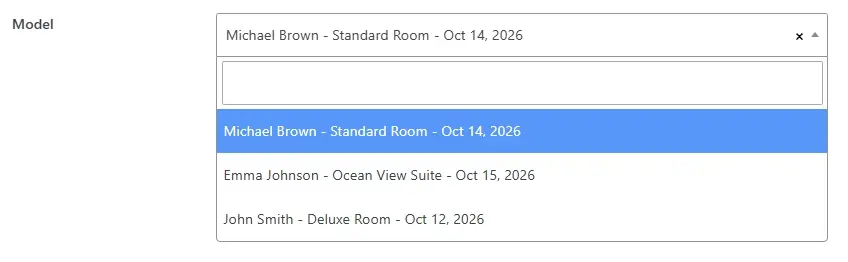


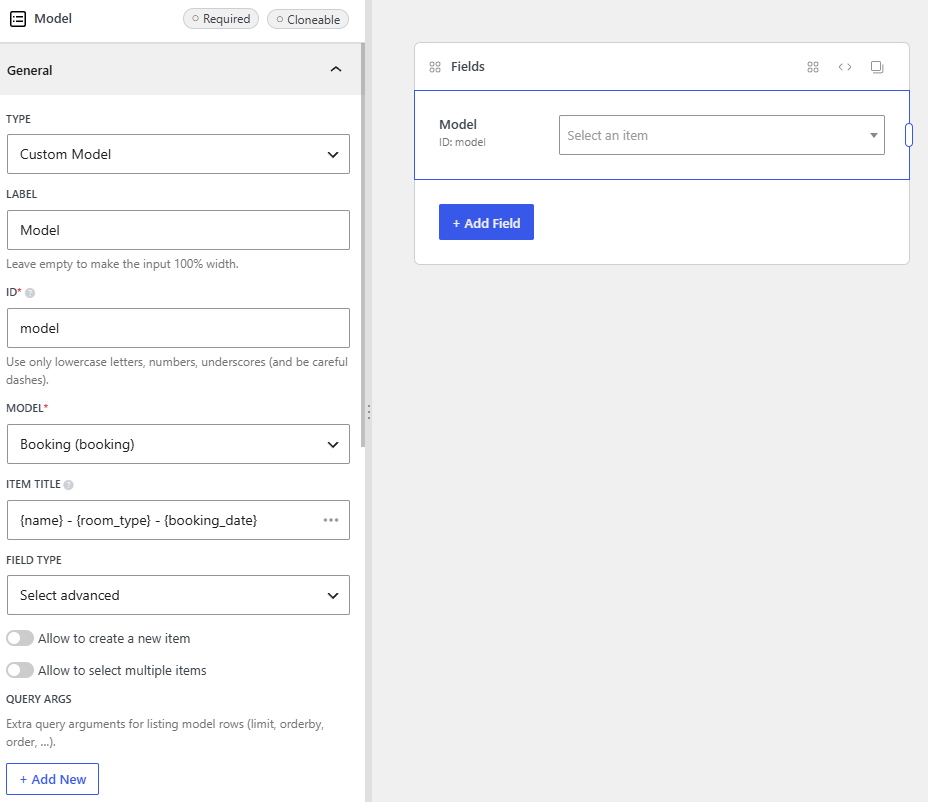
Settings
Besides the common settings, this field has the following specific settings. Use the keys below in code:
| Name | Key | Description |
|---|---|---|
| Model | model | Model slug to query. Required. |
| Item title | item_title | Column or template for the label of each item. Use a column name (title) or placeholders with column IDs in curly braces, for example {email} - {amount}. Required. |
| Query args | query_args | Extra query arguments for listing model rows. Optional. See below. |
| Placeholder | placeholder | Placeholder for the select box. Default is "Select a {model label}". Applies only when the field type is a select field. |
| Add new | add_new | Allow users to create a new model item from the field (true or false). |
| Field type | field_type | How the items appear in the UI. See below. |
Query args
query_args accepts the following keys:
| Name | Description |
|---|---|
limit | Maximum number of rows to return. Default is 10 when Ajax is on, and 100 when Ajax is off. Use -1 for no limit. Ajax caps positive values at 100. |
page | Page number for pagination. Default is 1. Ajax sets this when the user scrolls for more items. |
orderby | Column to sort by. Must be a real table column. Default is ID. |
order | Sort direction: ASC or DESC. Default is DESC. |
exclude | Array of model IDs to exclude from the list. |
s | Search term. Ajax sets this when the user types in the search box. You rarely set this in field settings. |
This field inherits the look and settings from other fields, depending on the field type:
| Field type | Description | Settings inherited from |
|---|---|---|
select | Simple select dropdown. | Select |
select_advanced | Select dropdown with the Select2 library. This is the default value. | Select advanced |
checkbox_list | Flat list of checkboxes. Allows multiple items. | Checkbox list |
radio_list | Flat list of radio buttons. Allows one item. | Radio |
Sample field settings when you create this field with code:
[
	'name'        => 'Select a booking',
	'id'          => 'booking_id',
	'type'        => 'model',
	'model'       => 'booking',
	'item_title'  => '{title} - {amount}',
	'field_type'  => 'select_advanced',
	'placeholder' => 'Select a booking',
],
Ajax load
Meta Box uses Ajax to load model items in batches. The plugin loads a limited set of items first. It loads more items when the user scrolls down the list.
This feature is available only when the field type is select advanced. You can disable or customize it with the parameters below.
Enable or disable Ajax requests
Meta Box enables Ajax load by default when the field type is select advanced.
If you create this field with code, set the ajax parameter. It accepts a boolean and defaults to true:
[
	'name'       => 'Booking',
	'id'         => 'booking_id',
	'type'       => 'model',
	'model'      => 'booking',
	'item_title' => '{title} - {amount}',
	'ajax'       => true,
],
Set ajax to false to disable Ajax requests.
Limit the number of items for pagination
To set the number of items per request, use limit in query_args:
[
	'name'       => 'Booking',
	'id'         => 'booking_id',
	'type'       => 'model',
	'model'      => 'booking',
	'item_title' => '{title} - {amount}',
	'ajax'       => true,
	'query_args' => [
		'limit' => 10,
	],
],
When Meta Box loads more items, it appends them to the dropdown list.
limit does not control the initial load of the field. On the first load, Meta Box queries only the saved items. That query stays small.
Search parameters
To delay Ajax requests until the user types in the search box, set minimumInputLength in js_options:
[
	'name'       => 'Booking',
	'id'         => 'booking_id',
	'type'       => 'model',
	'model'      => 'booking',
	'item_title' => '{title} - {amount}',
	'ajax'       => true,
	'query_args' => [
		'limit' => 10,
	],
	'js_options' => [
		'minimumInputLength' => 1,
	],
],
minimumInputLength is the minimum number of characters required to start a search.
Meta Box searches in the columns from item_title. For example, if item_title is {title} - {amount}, the search runs against the title and amount columns. If the search term is numeric, Meta Box also matches the row ID.
Data
This field saves one or more model item IDs in the database.
If Multiple is off, Meta Box saves a single model ID in one meta row.
If Multiple is on and the field is not cloneable, Meta Box saves each model ID in a separate row with the same meta key. This matches add_post_meta with the last parameter set to false.
If the field is cloneable, Meta Box stores the value as a serialized array in a single row.
Template usage
Get the selected model ID:
<?php $booking_id = rwmb_meta( 'booking_id' ); ?>
<p>Selected booking ID: <?= $booking_id ?></p>
Get the selected model row:
<?php
$booking_id = rwmb_meta( 'booking_id' );
$booking    = \MetaBox\CustomTable\API::get( $booking_id, 'bookings' );
?>
<pre><?php print_r( $booking ); ?></pre>
Replace bookings with your model table name.
Show a value from the selected model:
<?php
$booking_id = rwmb_meta( 'booking_id' );
$title      = \MetaBox\CustomTable\API::get_value( 'title', $booking_id, 'bookings' );
?>
<p>Booking: <?= esc_html( $title ) ?></p>
Show multiple selected models:
If Multiple is on or the field is cloneable, loop through the returned IDs:
<?php $booking_ids = rwmb_meta( 'booking_id' ); ?>
<ul>
	<?php foreach ( (array) $booking_ids as $booking_id ) : ?>
		<?php $title = \MetaBox\CustomTable\API::get_value( 'title', $booking_id, 'bookings' ); ?>
		<li><?= esc_html( $title ) ?></li>
	<?php endforeach ?>
</ul>